> ## Documentation Index
> Fetch the complete documentation index at: https://magicpatterns.mintlify.site/docs/llms.txt
> Use this file to discover all available pages before exploring further.
# Sync with Github
> Generate designs and then sync them with Github
Sync with Github requires a paid plan. [Upgrade
here](https://www.magicpatterns.com/dashboard?dl=billing).
Export your design to a Github code repository. This is a great way to either hand off a design to a developer or bring Magic Patterns designs into your code editor, like Cursor.
Sync with Github creates a **new repository** in your selected organization. You can then clone this repo and continue development in your preferred environment.
You'll be able to pull new changes from Github to continue working on them with Magic Patterns.
It is a two-way sync.
### Steps
You can sync your Magic Patterns design to and from Github with a few easy steps.
Generate a design and click on the Github icon at the top of the code tab.
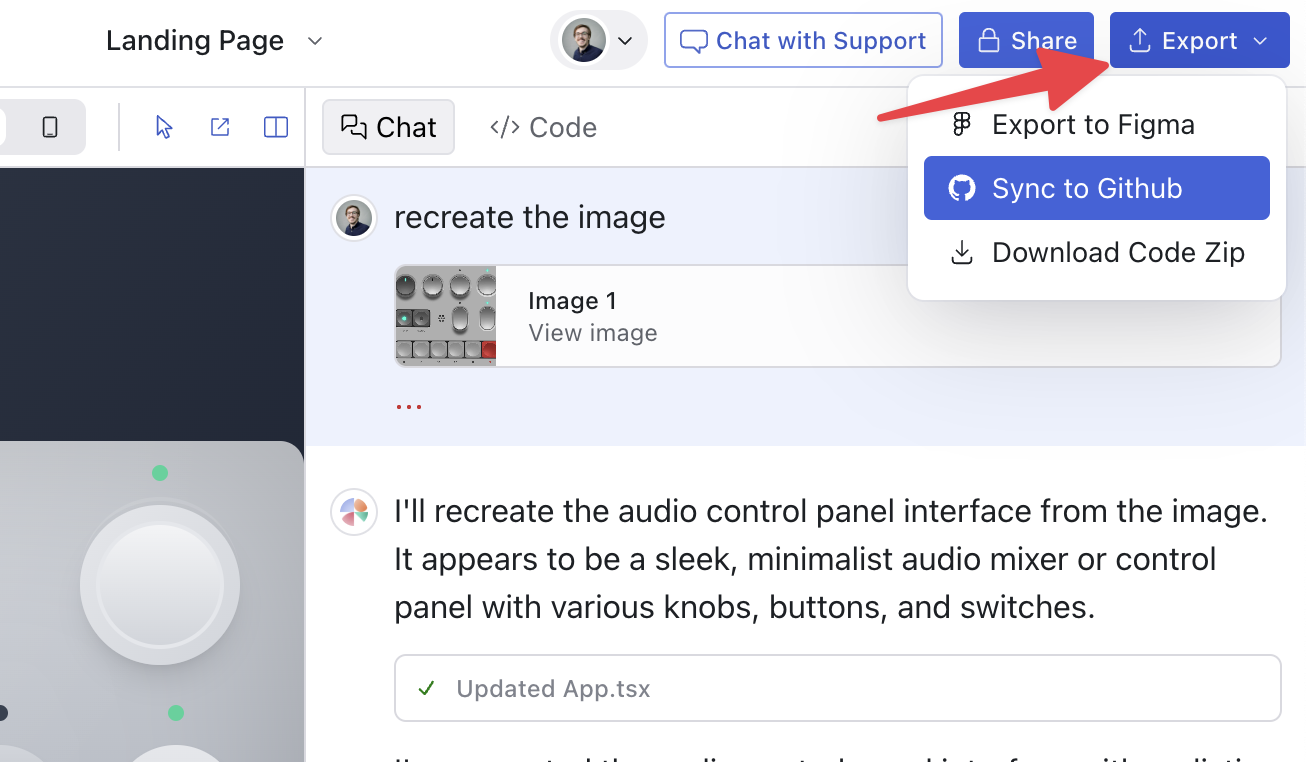 If it's your first time syncing to Github, you'll be asked to install the Magic
Patterns Github app. Click 'Install Github App' to continue.
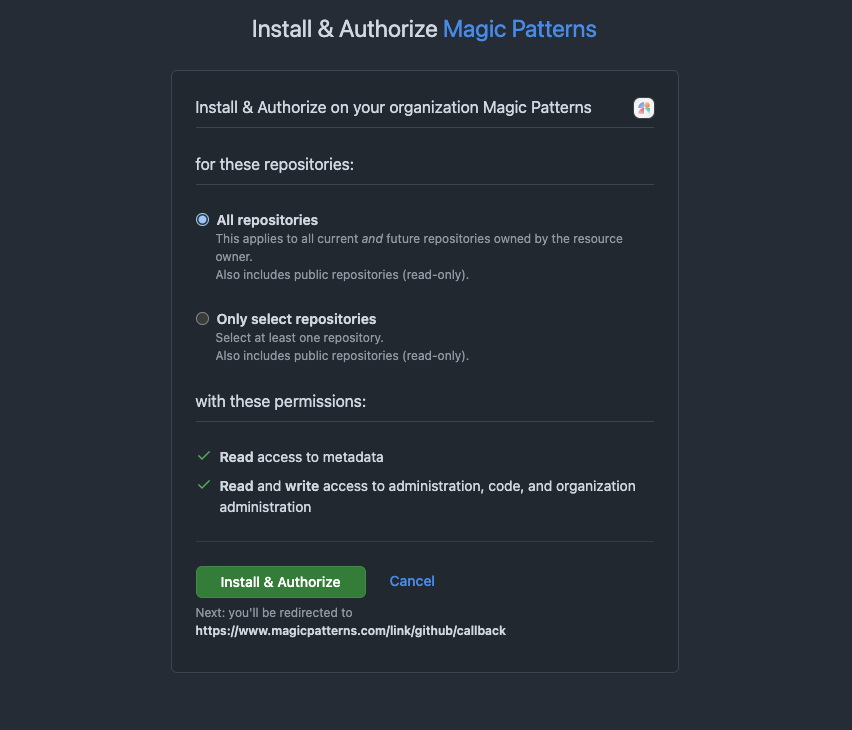
Follow the instructions to install the app. Pick the organization where you
want to create the new repository. The Github app will request the necessary
permissions.
If it's your first time syncing to Github, you'll be asked to install the Magic
Patterns Github app. Click 'Install Github App' to continue.
Follow the instructions to install the app. Pick the organization where you
want to create the new repository. The Github app will request the necessary
permissions.
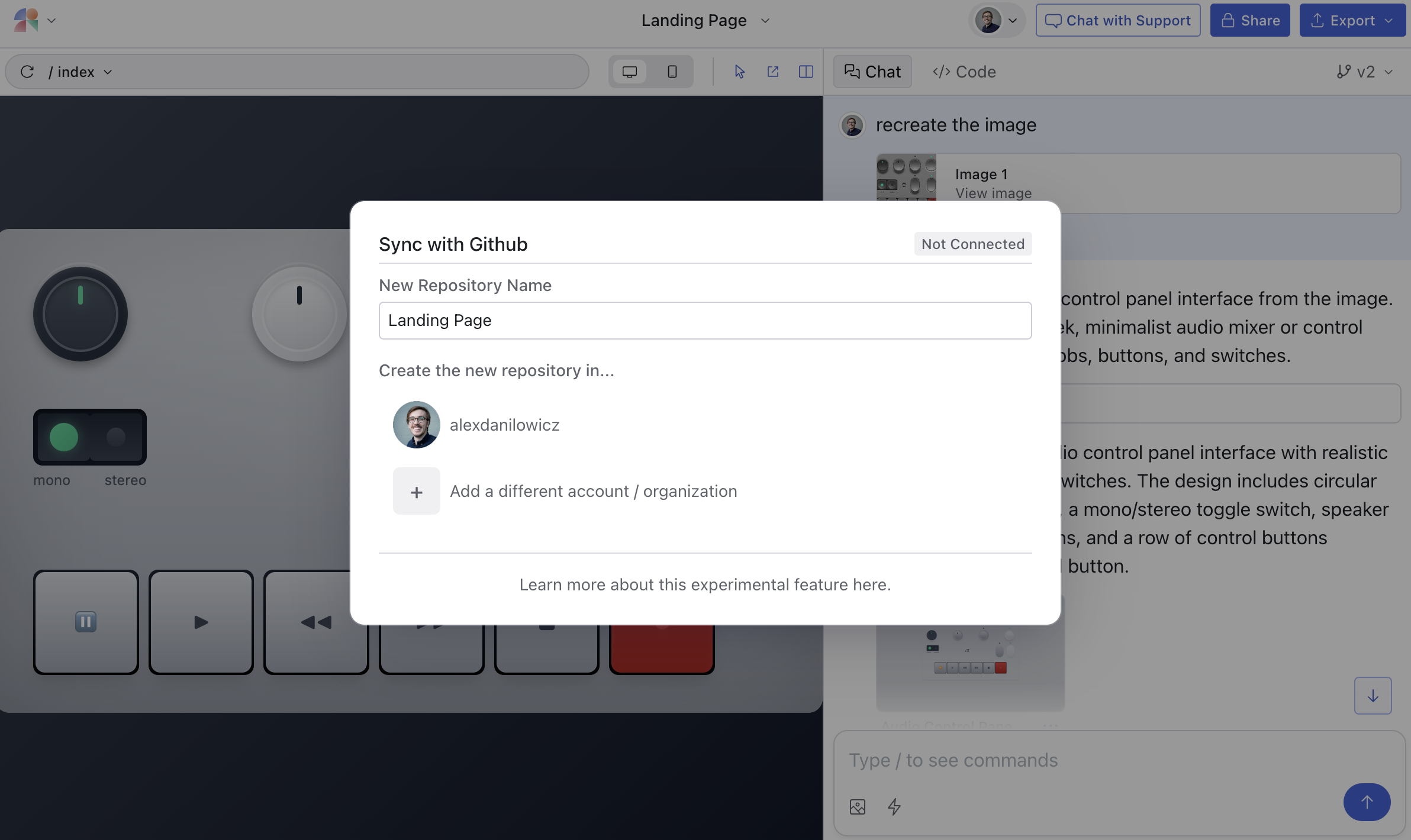
 Once the app is installed and authorized, you will automatically be
brought back to Magic Patterns. In the Github panel, you will see the
available organizations you can create the new repository in.
Once you select an organization, the new repository will be created.
Once the app is installed and authorized, you will automatically be
brought back to Magic Patterns. In the Github panel, you will see the
available organizations you can create the new repository in.
Once you select an organization, the new repository will be created.
 If you have many edits in Magic Patterns you want to sync new changes, simply click export to Github again in the top right corner and then "sync." Similarly, if you have many edits in Github you want to sync back to Magic Patterns, simply click "sync" in the Github panel.
 ### FAQ
We currently support exporting to a React + Vite code template. More
customizations are coming soon (let us know what you want to see). We chose
React + Vite for its popularity.
No! We keep every version you make in Magic Patterns, including when you
pull a new version from Github.
Yes! You can make changes to the code in Cursor and then push them to
Github, which can then be synced back to Magic Patterns.
In order to keep the code compatible in Magic Patterns, we strip out what we
deem as unnecessary code. Please get in touch if you think this is a
mistake!
### FAQ
We currently support exporting to a React + Vite code template. More
customizations are coming soon (let us know what you want to see). We chose
React + Vite for its popularity.
No! We keep every version you make in Magic Patterns, including when you
pull a new version from Github.
Yes! You can make changes to the code in Cursor and then push them to
Github, which can then be synced back to Magic Patterns.
In order to keep the code compatible in Magic Patterns, we strip out what we
deem as unnecessary code. Please get in touch if you think this is a
mistake!