> ## Documentation Index
> Fetch the complete documentation index at: https://magicpatterns.mintlify.site/docs/llms.txt
> Use this file to discover all available pages before exploring further.
# Linking Screens Together
> Link together screens and get an embeddable prototype
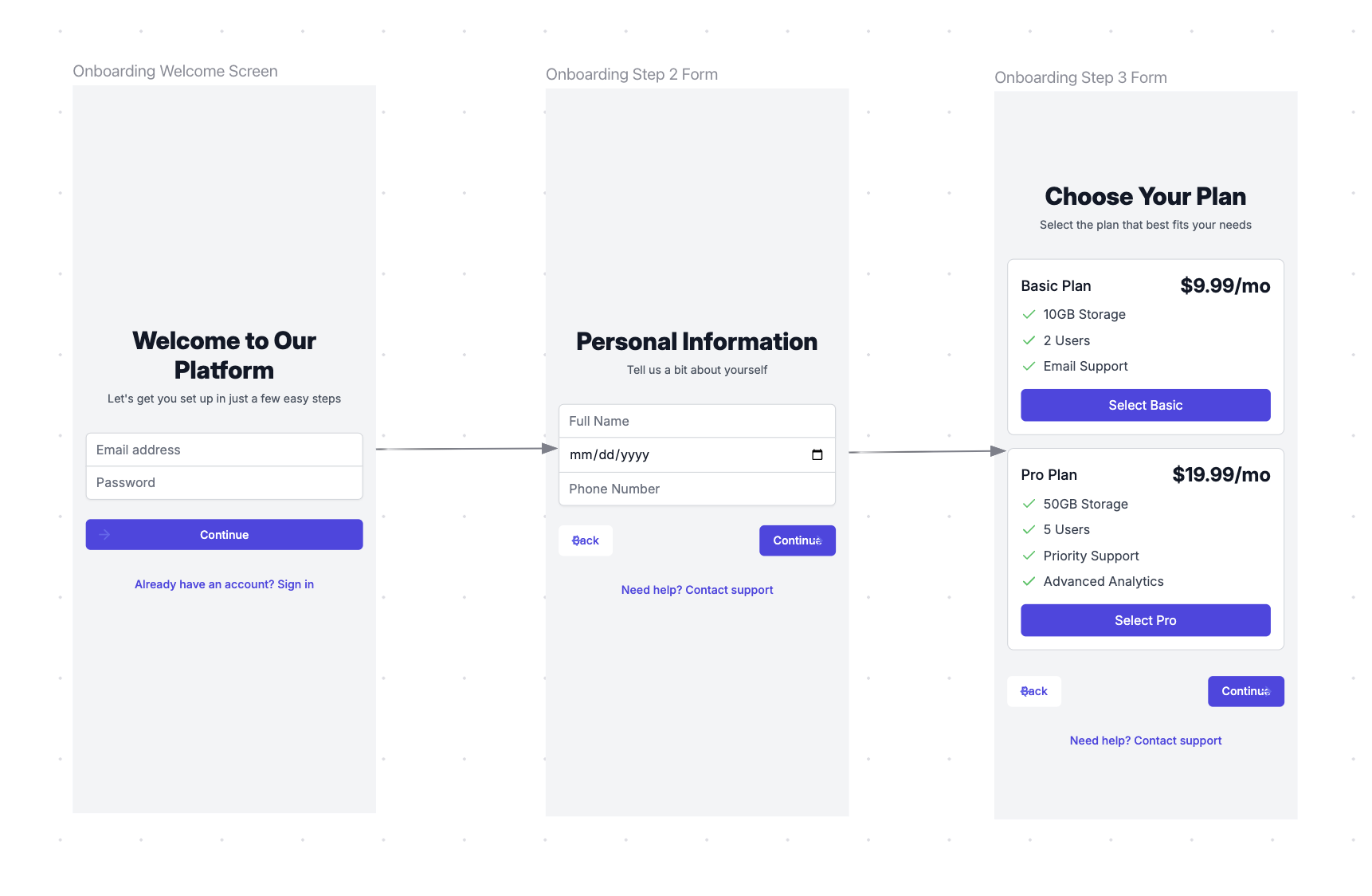
On the canvas you can link screens together and get a
"playable" app using "Prototype Mode."
You can make a single chat highly interactive with multiple
pages, and therefore no need for prototype mode.
But we offer this feature for linking together large designs because once designs
get very large it can be hard for the AI to add new pages.
## Prototyping Tutorial
## How to link screens
1. Enter prototype mode either through the tool selector in the bottom bar or use the keyboard shortcut `P`
2. Hover over the element in the screen you want to link. It should turn blue. Click that element.
3. Click the screen you want to connect that element to.
4. You should see a toast in the bottom right pop up "Linking screens..."
5. Once your screens are linked, you should see an arrow connecting those two screens.
## Playing your prototype
To play your prototype, select the screen you want to start on. Next, click the "Play" button in the top toolbar.
This will open up a separate window with your prototype.
## Unlinking screens
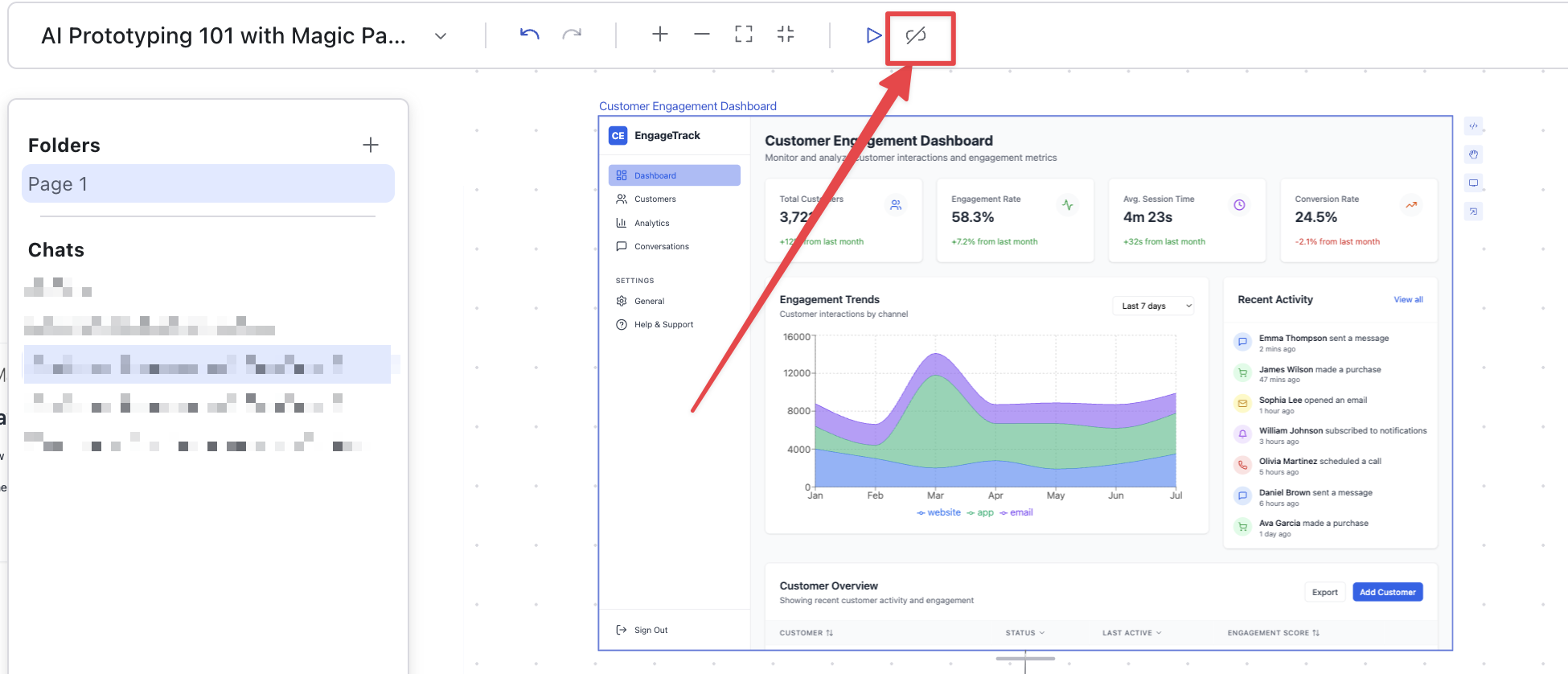
To unlink screens, select the screen you want to remove links from. Click the "Unlink" button in the top toolbar.
Make sure you have the screen selected first before trying to unlink!
 ## Prototyping Tutorial
## How to link screens
1. Enter prototype mode either through the tool selector in the bottom bar or use the keyboard shortcut `P`
2. Hover over the element in the screen you want to link. It should turn blue. Click that element.
3. Click the screen you want to connect that element to.
4. You should see a toast in the bottom right pop up "Linking screens..."
5. Once your screens are linked, you should see an arrow connecting those two screens.
## Playing your prototype
To play your prototype, select the screen you want to start on. Next, click the "Play" button in the top toolbar.
This will open up a separate window with your prototype.
## Unlinking screens
To unlink screens, select the screen you want to remove links from. Click the "Unlink" button in the top toolbar.
## Prototyping Tutorial
## How to link screens
1. Enter prototype mode either through the tool selector in the bottom bar or use the keyboard shortcut `P`
2. Hover over the element in the screen you want to link. It should turn blue. Click that element.
3. Click the screen you want to connect that element to.
4. You should see a toast in the bottom right pop up "Linking screens..."
5. Once your screens are linked, you should see an arrow connecting those two screens.
## Playing your prototype
To play your prototype, select the screen you want to start on. Next, click the "Play" button in the top toolbar.
This will open up a separate window with your prototype.
## Unlinking screens
To unlink screens, select the screen you want to remove links from. Click the "Unlink" button in the top toolbar.