> ## Documentation Index
> Fetch the complete documentation index at: https://magicpatterns.mintlify.site/docs/llms.txt
> Use this file to discover all available pages before exploring further.
# Using References
> References are a way to add context to your prompts
References are great when the designs you referencing are small and simple,
and not recommended when they are very complex. Instead, we recommend using
screenshots or components.
References are recommended in the following scenarios:
* You want to generate a new screen based off an existing screen
* You want to keep a design consistent across multiple screens
* You want to modify an existing design
* You want to merge or combine multiple designs
## How to use a reference
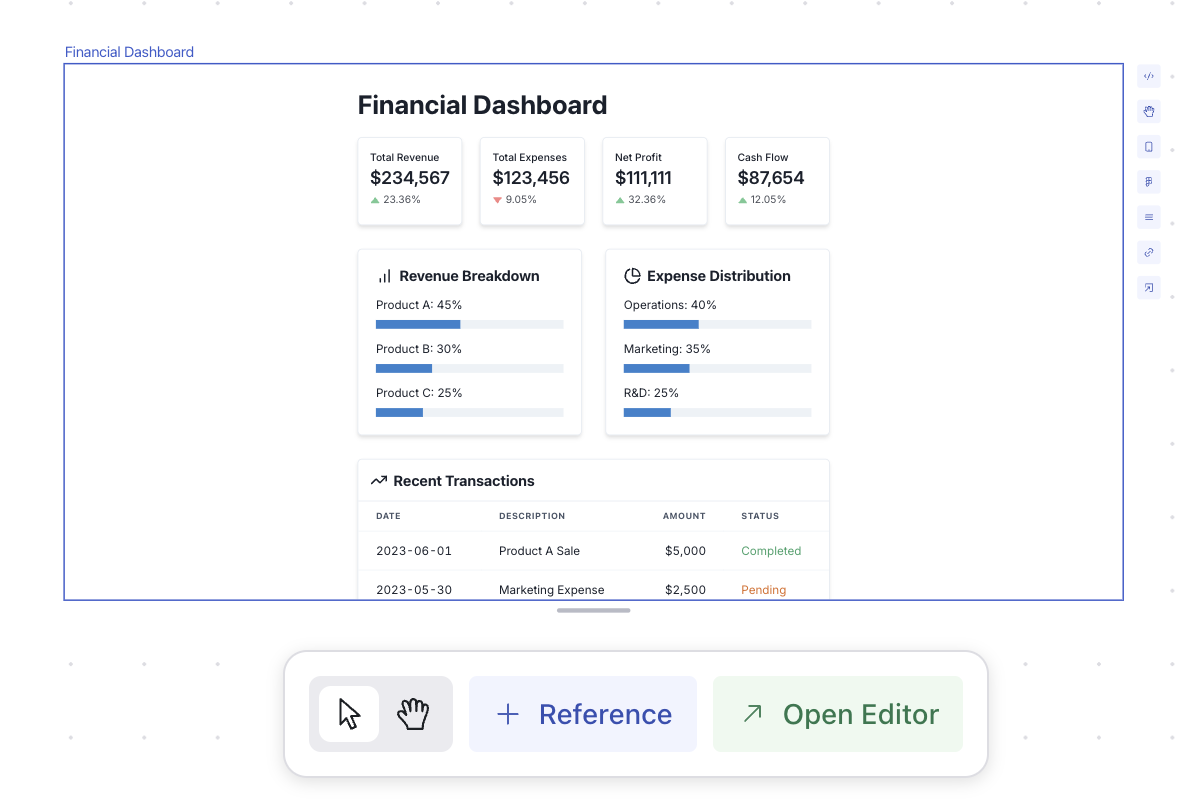
To use a reference, select the screen you want to reference and click the `Reference` button in the bottom action bar.
### Multiple References
You can select multiple screens to reference by holding down the `shift` key while selecting screens or by dragging your selection around multiple screens.
For more examples, check out our [prompt templates](/documentation/projects/prompt-templates).
### Prompting with references
You can directly address references in your prompts by referring them to `Reference #`. For example, an example prompt for combining two screens
would look like this:
> Recreate Reference 2 but use Reference 1 as theming and styling inspiration. Keep the layout of Reference 2 the exact same. Only use colors from Reference 1.
### Under the hood
Behind the scenes, we are simply passing in the code to each of the screens along with your new prompt. As a result, you still have ultimate flexibility
in your prompt. We have future plans to add more sophisticated reference modes to make prompting even easier.
 For more examples, check out our [prompt templates](/documentation/projects/prompt-templates).
### Prompting with references
You can directly address references in your prompts by referring them to `Reference #`. For example, an example prompt for combining two screens
would look like this:
> Recreate Reference 2 but use Reference 1 as theming and styling inspiration. Keep the layout of Reference 2 the exact same. Only use colors from Reference 1.
### Under the hood
Behind the scenes, we are simply passing in the code to each of the screens along with your new prompt. As a result, you still have ultimate flexibility
in your prompt. We have future plans to add more sophisticated reference modes to make prompting even easier.
For more examples, check out our [prompt templates](/documentation/projects/prompt-templates).
### Prompting with references
You can directly address references in your prompts by referring them to `Reference #`. For example, an example prompt for combining two screens
would look like this:
> Recreate Reference 2 but use Reference 1 as theming and styling inspiration. Keep the layout of Reference 2 the exact same. Only use colors from Reference 1.
### Under the hood
Behind the scenes, we are simply passing in the code to each of the screens along with your new prompt. As a result, you still have ultimate flexibility
in your prompt. We have future plans to add more sophisticated reference modes to make prompting even easier.